

If you’re running n8n on a Hostinger VPS, you’ve probably noticed the little version number sitting in the bottom corner of your editor slowly falling behind. n8n ships updates constantly — bug fixes, security patches, and new nodes go out almost every week. Falling two or three months behind isn’t rare, it’s the default if you’re not paying attention.
The problem is that updating a self-hosted n8n instance isn’t as simple as clicking “update” in an app store. You’re dealing with Docker containers, SSH, and — if something goes wrong — the very real possibility of losing workflows, credentials, or execution history that you never backed up.
This guide walks through exactly how to update n8n on Hostinger VPS the right way: safely, with a backup in place, and with the troubleshooting steps you’ll actually need if something doesn’t come back up cleanly.
Table of Contents
Why You Shouldn’t Ignore n8n Updates
A lot of self-hosters treat n8n like a “set it and forget it” tool once it’s running. That’s a mistake for three reasons:
- Security patches. n8n regularly ships fixes for vulnerabilities in its dependencies — things like credential handling, webhook validation, and third-party libraries. Running an outdated version on a public-facing VPS is a real exposure, not a theoretical one.
- Node reliability fixes. If you’ve ever had a workflow silently fail because a specific node (Slack, HTTP Request, Google Sheets, Supabase, etc.) had a bug, there’s a good chance a later release already fixed it.
- New features you’re paying for indirectly. AI Agent nodes, evaluation tools, and editor improvements roll out fast. If you’re stuck on an old version, you’re running n8n with one hand tied behind your back while your workflows quietly get less reliable, not more.
The counterargument — and it’s a fair one — is “if it’s working, why touch it?” That’s valid for a production instance running business-critical workflows with zero tolerance for downtime. The answer isn’t “never update,” it’s “update on a schedule, with a backup, during low-traffic hours.” That’s what the rest of this guide sets up.
Method 1: Via Docker Compose Manager
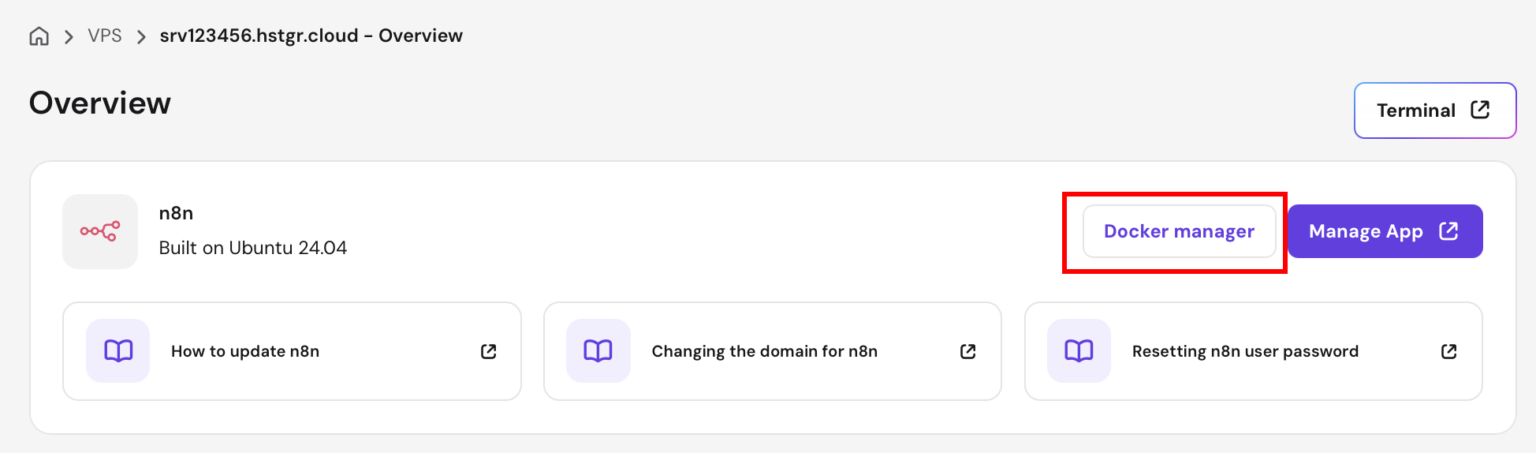
Step 1: Access Docker Compose Manager.
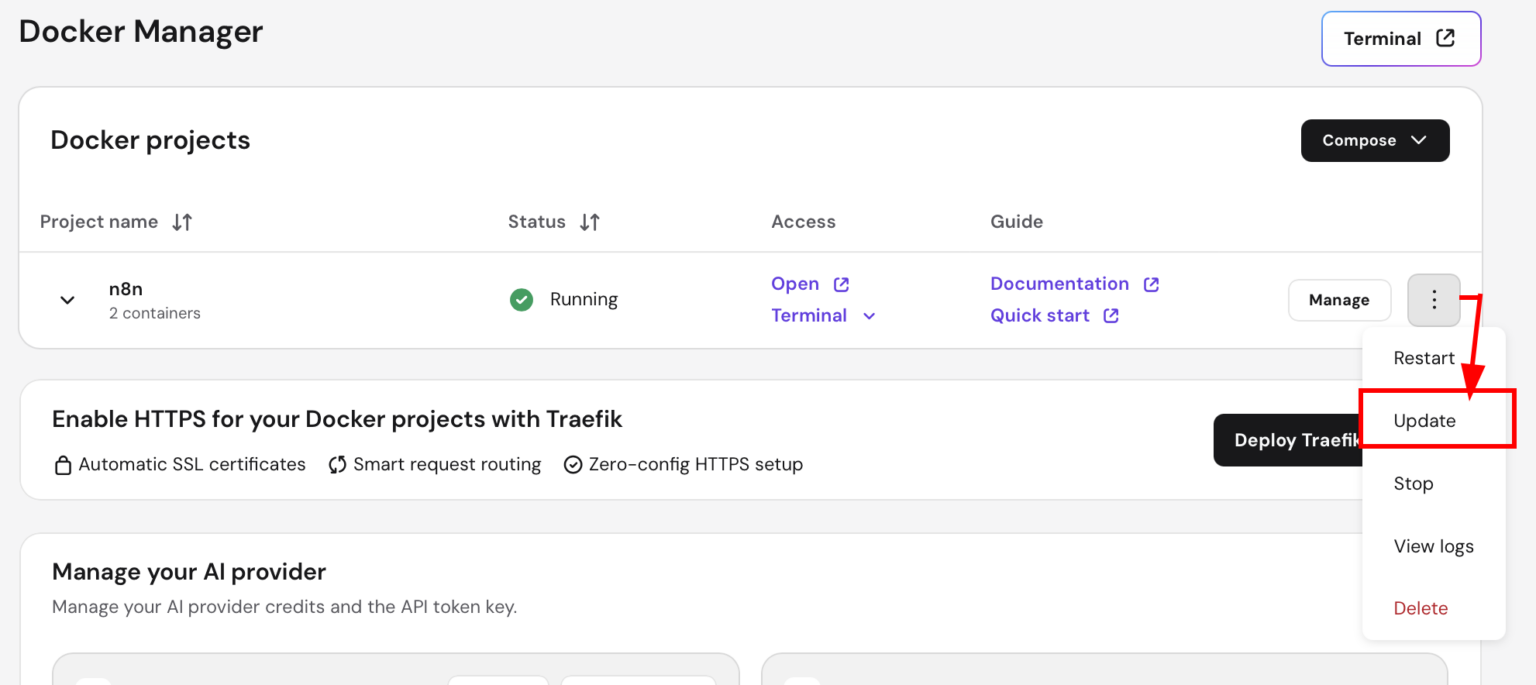
Step 2: Find your n8n project, press on three dots and then on “Update”.
Method 2: Via Terminal
Step 1: Access Your VPS Through the Browser Terminal
Log in to your Hostinger hPanel, go to your VPS, and open the Browser Terminal — this is Hostinger’s built-in SSH client, so you don’t need PuTTY or a separate terminal app unless you prefer one. If you’d rather use your own terminal, SSH in the normal way:
ssh [email protected]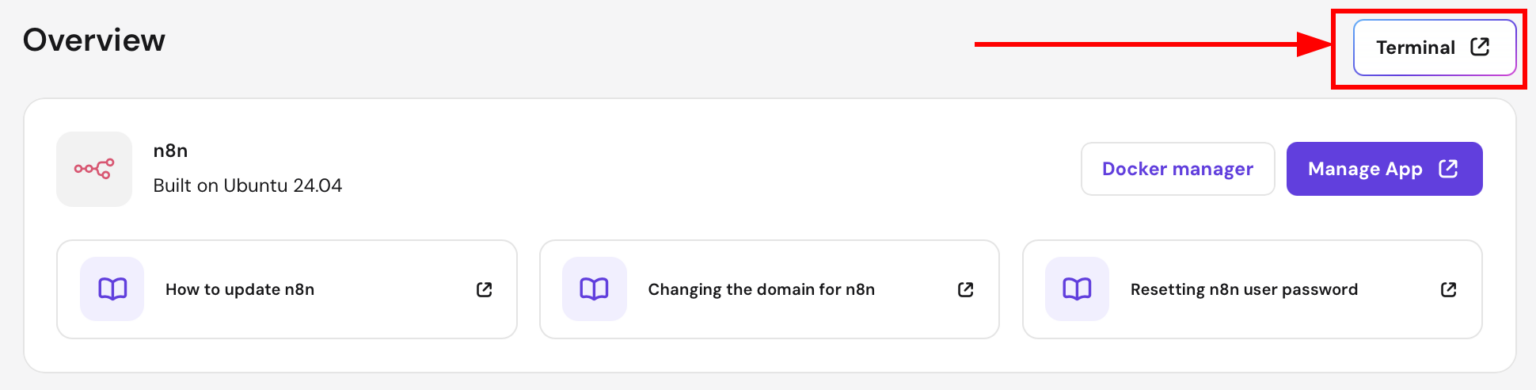
If you deployed n8n using Hostinger’s official “Ubuntu 24.04 with n8n” template, your Docker Compose file lives at /docker/n8n/docker-compose.yml. Navigate there:
cd /docker/n8nIf you set n8n up manually in a custom directory, cd into wherever your docker-compose.yml file actually is instead.
Step 2: Pull the Latest n8n Image
With your docker-compose.yml in the current directory, run:
docker compose pullThis downloads the latest n8nio/n8n image from Docker Hub without touching your currently running container yet. Depending on your VPS’s connection speed, this takes anywhere from 15 seconds to a couple of minutes.
If your Compose file pins a specific version (something like image: n8nio/n8n:1.98.1), this command won’t actually update you — it’ll just re-pull the same pinned version. Open the file with nano docker-compose.yml, change the tag to latest (or the specific newer version you want), save with CTRL+X, then Y, then Enter, and re-run the pull command.
Step 3: Stop and Remove the Running Container
docker compose downThis stops and removes the currently running n8n container. It sounds destructive, but it isn’t — your data lives in the mounted volume (/home/node/.n8n or your Postgres database), not inside the container itself, so nothing is lost here as long as your volumes are correctly mapped in the Compose file. This is also exactly why the backup step above matters: it’s your safety net in case a volume mapping was ever misconfigured.
Step 4: Start n8n With the Updated Image
docker compose up -dThe -d flag runs it detached, so it keeps running in the background after you close your terminal session. Docker recreates the container using the image you just pulled, reattaches your existing volumes, and starts n8n back up — now on the newer version.
Give it 20–30 seconds. On the first boot after certain version jumps, n8n may run internal database migrations, which can take a little longer than a normal restart.

What to Do If the Update Breaks Something
This doesn’t happen often, but when it does, it’s usually one of these:
n8n won’t start / container keeps restarting. Check the logs with docker compose logs n8n. This is almost always a database migration issue or an environment variable that’s no longer valid in the new version. Compare your environment: block in docker-compose.yml against n8n’s current documentation for deprecated variables.
A specific node stopped working. Version jumps occasionally deprecate or rename node parameters. Open the affected workflow, look for a red warning icon on the node, and check n8n’s release notes on GitHub for that node’s breaking changes.
You need to roll back. Edit docker-compose.yml to pin the previous version tag (e.g., n8nio/n8n:1.98.1), then:
docker compose down && docker compose up -dIf your data volume was affected too, restore it from your backup folder before restarting.
Disk space errors during the pull. VPS plans with smaller storage allocations can run out of space holding both the old and new Docker images. Run docker system prune -a after a successful update to clear out old, unused images.
How Often Should You Actually Update n8n?
There’s no universal answer, but here’s a practical rule of thumb based on how n8n ships releases (multiple point releases a week, mostly bug fixes and security patches, with larger feature releases less frequently):
- Production instances running client work or revenue-critical workflows: update monthly, always with a backup, always during a low-traffic window.
- Personal or internal automation instances: update every 1–2 weeks, since the blast radius of something breaking is smaller.
- Anything handling sensitive data or public webhooks: don’t let security patches sit for more than a couple of weeks — that’s the update category you least want to skip.
If manually SSHing in every couple of weeks isn’t something you want to own long-term, that’s a legitimate reason to look at either automating the process yourself (a scheduled workflow or a Make.com/n8n scenario that checks for new releases and runs the update commands for you) or moving to a managed n8n host where someone else owns that job entirely
The Manual Route vs. Not Doing This At All
Here’s the honest tradeoff. Self-hosting n8n on a Hostinger VPS gives you full control and it’s cheap on paper — but “cheap” doesn’t account for the time you spend SSHing in every few weeks, backing up manually, and being the one who gets paged if an update goes sideways at 2 AM.
If you’d rather skip the SSH sessions, the Docker Compose files, and the manual backups entirely, that’s precisely the gap n8n LaunchPad exists to close — pre-deployed, managed n8n instances where updates, backups, and uptime aren’t your problem to babysit. Worth a look if you’re spending more time maintaining your n8n server than actually building workflows in it.

Frequently Asked Questions
Will I lose my workflows when I update n8n on Hostinger?
No, not if your Docker volumes are set up correctly. Your workflows, credentials, and execution data live outside the container in a mounted volume (or a separate Postgres database), so docker compose down followed by docker compose up -d doesn’t touch that data. Still, always back up first — volume misconfigurations do happen, especially on manually customized setups.
Do I need to stop my workflows before updating?
You don’t have to manually pause them, but any workflow actively executing at the exact moment you run docker compose down will be interrupted. For production instances, it’s safer to update during a low-traffic window rather than in the middle of your busiest automation hours.
How do I check what n8n version I’m currently running?
Log into your n8n editor and check the version number in the bottom-left corner, or go to Settings → About. You can also run docker exec n8n n8n –version from your VPS terminal.
Can I downgrade n8n if a new version breaks something?
Yes. Pin the previous version tag in your docker-compose.yml (e.g., n8nio/n8n:1.98.1 instead of latest), then run docker compose down and docker compose up -d again. This is exactly why keeping a backup before every update matters.
Does updating n8n on Hostinger cause downtime?
Yes, briefly. Between docker compose down and docker compose up -d, your n8n instance is offline — typically 20 to 60 seconds, longer if a database migration runs on first boot. Any webhook-triggered workflows that fire during that window will fail to receive the request.
Is there a way to automate n8n updates on Hostinger so I don’t have to do this manually?
Yes — you can build a scheduled automation (cron job, or an n8n/Make.com workflow) that checks the n8n GitHub releases feed and runs the update commands automatically. It’s doable, but it adds its own maintenance overhead and risk if a breaking release ships. Managed platforms like n8n LaunchPad handle this natively without you needing to build and monitor that automation yourself.
What’s the difference between updating n8n via Docker vs. an npm install?
If you installed n8n directly via npm install -g n8n instead of Docker, the update command is different — npm update -g n8n — and you don’t get the same isolation and rollback simplicity Docker gives you. Hostinger’s official n8n VPS template uses Docker, so this guide’s steps apply if you used that template or a similar Docker Compose setup.