
If you’re self-hosting n8n on a VPS with Docker, you’ve probably typed docker compose pull && docker compose up -d at 1 AM, held your breath, and hoped nothing broke. Maybe it worked. Maybe your webhook URLs stopped firing, or a node you rely on suddenly showed a red “deprecated” warning, and now you’re digging through GitHub issues instead of shipping.
This guide fixes that. You’ll get the exact update commands for every setup — Docker Compose, Docker Desktop, and plain docker run — plus the backup step almost every tutorial skips, and a rollback plan for when an update doesn’t go as planned. Let’s dive in on how to update n8n on docker.
Table of Contents
Why Updating n8n Isn’t as Simple as “Pull the Latest Image”
n8n ships new versions constantly — bug fixes go out almost daily, and feature releases land every few weeks. That’s good for security and new nodes, but it also means:
- Breaking changes exist between major versions. n8n publishes a dedicated breaking-changes list for major version jumps (like moving across a v1.0 or v2.0 boundary), and skipping straight from an old version to the newest one can silently break credentials, expressions, or node behavior.
- Your workflow data lives in a volume, not the image. Updating the image is safe only if your n8n_data volume (or your Postgres database, if you’re using it) stays intact through the process.
- Community nodes can lag behind core updates. If you’re running community nodes, an n8n core update can occasionally outpace node compatibility.
None of this means “don’t update.” It means update deliberately — which is what the steps below walk you through.
Method 1: Updating n8n with Docker Compose (Most Common for VPS)
If you’re running n8n on a VPS — Hostinger, DigitalOcean, Contabo, whatever — you’re almost certainly using Docker Compose. Here’s the correct sequence:
ls -a #helps you to find your n8n folder
cd n8n #to go inside your folder docker compose pull && docker compose down && docker compose up -d
What each line actually does:
- docker compose pull — downloads the latest image defined in your
docker-compose.yml(or the specific version if you’ve pinned one — more on that below) - docker compose down — stops and removes the current container without touching your volumes
- docker compose up -d — recreates the container from the new image and reattaches your existing volume, so your data survives
Confirm it worked:
docker exec -it n8n n8n --versionIf the version number matches what you expected, you’re done. Watch your active workflows for the next few executions to make sure everything still fires correctly.
Method 2: Updating n8n on Docker Desktop (Local / Windows / Mac)
If you’re running n8n locally through Docker Desktop for testing or development:
- Open Docker Desktop
- Go to the Images tab
- Find your n8n image, right-click it, and select Pull
- Once the pull finishes, go to Containers, stop your existing n8n container, and start it again (or recreate it if you’re not using a persistent volume-mounted setup)

Method 3: Updating n8n with Plain docker run (No Compose File)
If you started n8n with a single docker run command instead of Compose, here’s how to update it cleanly.
Step 1: Pull the new image
docker pull docker.n8n.io/n8nio/n8nStep 2: Stop and remove the existing container
docker stop n8n
docker rm n8n
This does not delete your data — as long as your original docker run command used a named volume (like n8n_data), your workflows are safe.
Step 3: Start a new container from the updated image
docker run -it -d \
  --name n8n \
  -p 5678:5678 \
  -v n8n_data:/home/node/.n8n \
  docker.n8n.io/n8nio/n8n
Match the flags (port, volume name, environment variables) to whatever you used in your original setup — copy them from your shell history or notes if you’re not sure.
How to Roll Back if an Update Breaks Something
If your workflows start failing after an update, don’t panic — roll back.
If you pinned a version, just change the tag back to your previous known-good version in your docker-compose.yml and re-run:
docker compose pull && docker compose down && docker compose up -dIf you need to restore your data from backup:
docker volume rm n8n_data
docker volume create n8n_data
docker run --rm -v n8n_data:/data -v $(pwd):/backup alpine tar xzf /backup/n8n_backup_YYYY-MM-DD.tar.gz -C /data
Then start n8n again pointing at that restored volume. This is exactly why the backup step earlier isn’t optional.
Common Post-Update Issues (and Fast Fixes)
“n8n won’t start after updating” Check container logs immediately:
docker logs n8nMost of the time this points to a missing environment variable or a database migration that needs a moment to complete — give it 30–60 seconds and check again before assuming it’s broken.
“My credentials disappeared or won’t decrypt” This almost always means the volume wasn’t reattached correctly, or the container was recreated without the original encryption key persisting. This is precisely why the pre-flight backup matters — restore from it.
“A node I use is showing deprecated or missing” Check the n8n release notes for the version you updated to. Node deprecations are documented — you’ll usually find a direct replacement node named in the changelog.
“Webhook URLs stopped working” Reconfirm your WEBHOOK_URL or N8N_HOST environment variables are still set correctly in your Compose file — these occasionally get reset if you rebuilt the container from a fresh template instead of your original one.
Should You Automate n8n Updates?
Tools like Watchtower can auto-pull and restart containers when new images are published. Tempting — but for a production instance running real client automations, auto-updating without review is a genuine risk. A breaking change landing at 3 AM with no one watching is worse than a manually-triggered update once a week.
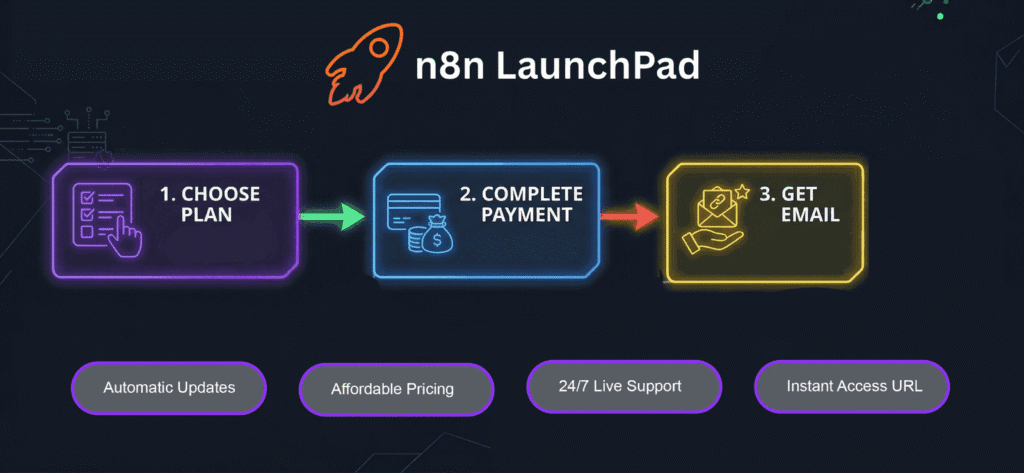
If you want the update cadence without babysitting Docker yourself, that’s honestly the exact problem n8n LaunchPad exists to solve — we handle version updates, backups, and uptime on managed n8n instances starting at $6/mo, so you’re not the one on call for a Tuesday-night Docker rollback.

Frequently Asked Questions
Will updating n8n delete my workflows?
No — not if your data is stored in a persistent volume (like n8n_data) and you don’t delete that volume. Updating the Docker image only replaces the application code, not your mounted data. Still, always back up before a major version jump.
How often should I update n8n?
For production instances, monthly is a reasonable cadence unless there’s a security patch — in which case update as soon as it’s released. Check the n8n release notes for anything marked as a security fix before delaying.
What’s the difference between docker compose pull and docker pull?
docker compose pull reads your docker-compose.yml and pulls whatever image/tag is defined there. docker pull is a direct, standalone command you use when you’re not managing n8n through a Compose file.
Can I downgrade n8n if a new version breaks my workflows?
Yes, if you know your previous version number. Change the image tag back to the older version in your Compose file (or docker run command) and restart. This is exactly why pinning versions instead of using :latest is worth doing.
Do I need to update my PostgreSQL database when I update n8n?
Not usually — n8n handles its own internal database migrations automatically on startup when the schema needs to change. You do NOT need to manually upgrade Postgres itself just because n8n released a new version, unless n8n’s release notes specifically say otherwise for a major version.
Is it safe to use Watchtower to auto-update n8n?
For local testing, sure. For a production instance running real workflows — especially client work — it’s risky, since you lose the ability to catch a breaking change before it hits your live automations. Manual, scheduled updates with a backup step are the safer call.
How do I check which n8n version I’m currently running?
Run docker exec -it n8n n8n –version from your terminal, or check the bottom-left corner of the n8n editor UI itself.
The Real Fix: Stop Managing Docker Updates Yourself
If this whole process feels like more DevOps than you signed up for when you just wanted to automate a workflow — that’s the exact gap n8n LaunchPad fills. Pre-deployed n8n instances, automatic updates, backups handled, uptime monitored — starting at $6/mo, no server management required.