
You Don’t Need to Be a Developer to build AI Agents
Be honest — how many times have you seen someone demo an AI agent on Twitter and thought, “That’s exactly what I need for my business,” followed immediately by “…but I have no idea how to build that.”
The good news? You don’t need to write Python. You don’t need to understand APIs at a deep level. You just need n8n and a clear use case. And in this guide, that’s exactly what we’ll walk through — step by step on how to build AI agent in n8n.
By the end of this post, you’ll know how to build a functional AI agent that can read emails, search the web, query a spreadsheet, or send automated replies — all inside a visual drag-and-drop canvas.
Table of Contents
What is an AI Agent, Really?
An AI agent is not just a chatbot. A chatbot gives you answers. An AI agent takes actions.
Think about it this way: a regular ChatGPT prompt can tell you what an email should say. An AI agent can actually send that email — after checking your calendar, looking up the contact in your CRM, and personalising the message based on past conversations.
The difference is tool use. AI agents are LLMs (like GPT-4 or Claude) that are connected to tools — APIs, databases, apps — and given the autonomy to decide when and how to use them to complete a goal.
Section Image — What is an AI Agent
A simple diagram showing: User Input → AI Brain (LLM) → Tools (Gmail, Sheets, Web Search, CRM) → Output/Action. Use a clean flowchart visual or screenshot from n8n’s AI agent node documentation.
Why n8n is the Best Tool to Build AI Agents Without Code
n8n gives you a visual workflow builder where each “tool” is just a node you drag onto the canvas. You connect them with lines, configure inputs, and your agent is live. No terminal. No Docker commands. No deploying code.
Compare this to building an agent from scratch in Python — you’d need to deal with LangChain, environment variables, tool schemas, and error handling. That’s days of work for a developer. In n8n, it’s an afternoon.
n8n vs Other AI Agent Builders — Quick Comparison
| Feature | n8n | Zapier AI | Make.com | LangChain |
|---|---|---|---|---|
| Visual Builder | ✓ Yes | ✓ Yes | ✓ Yes | ✗ No |
| Custom AI Tools | ✓ Full control | ~ Limited | ~ Limited | ✓ Full control |
| Free Self-Host | ✓ Yes | ✗ No | ✗ No | ✓ Yes |
| No Coding Needed | ✓ Yes | ✓ Yes | ✓ Yes | ✗ No |
| LLM Flexibility | GPT, Claude, Gemini, Ollama | OpenAI only | Limited | Any model |
| Pricing | Open source / Pay for cloud | Expensive | Mid-range | Free (self-host) |
n8n hits a sweet spot that none of the others can: visual, flexible, open-source, and AI-native. It’s the only tool where you can point an LLM at 400+ integrations without writing a single line of code.
How to Build an AI Agent in n8n — Step by Step
Let’s build something real. We’ll create an AI agent that monitors your Gmail inbox, reads new emails, and automatically drafts a reply — based on context from a Google Sheet with your FAQs.
This exact setup is used by freelancers and support teams to handle 80% of their routine inbox without touching it.
Section Image — Step by Step
A numbered visual walkthrough or annotated screenshot showing the n8n canvas with the workflow being built. Ideally, a before/after split showing empty canvas vs completed agent workflow.
Set up your n8n instance
You need a running n8n instance. You can install it locally (requires Node.js + terminal), self-host it on a VPS (requires server setup), or use a managed platform. More on the easiest option below.
Create a new workflow and add a Trigger node
Open your n8n canvas, click “+ New Workflow,” then add a trigger. For our use case, drag in the Gmail Trigger node and configure it to fire when a new email arrives in your inbox.
Add the AI Agent node
Search for “AI Agent” in the node panel and drag it onto the canvas. This is the brain of your workflow. Connect it to your Gmail trigger. Inside the node, set theLLMto OpenAI GPT-4o (or whichever model you prefer).
Write your system prompt
This is where you define the agent’s personality and task. Example: “You are a helpful customer support assistant. Based on the email you receive and the FAQ sheet provided, draft a polite, concise reply. Do not make up information that isn’t in the FAQ.”
Connect Tools to the agent
Under the “Tools” section inside the AI Agent node, add the Google Sheets tool (pointing to your FAQ sheet) and optionally a Gmail tool so the agent can send the reply directly. Each tool gets a short description — the LLM reads this to decide when to use which tool.
Add memory (optional but powerful)
Enable the Window Buffer Memory node and connect it to the AI Agent. This gives your agent short-term memory so it can handle multi-turn conversations coherently — useful if you want the agent to track context across multiple emails in the same thread.
Test and activate
Click “Test Workflow” to simulate a run with a real email. Check what the agent decides to do, inspect the output, tweak the system prompt if needed, then hit “Activate” — your agent is now running 24/7.
Pro tip: Start with a narrow, well-defined task. “Answer FAQs from my inbox” beats “handle all my emails” as a first agent. Specificity = better outputs from the LLM.
Other AI Agent Use Cases You Can Build in n8n
Once you understand the pattern — Trigger → AI Agent → Tools → Action — the possibilities open up fast. Here are a few real-world use cases:
- Lead qualifier: When a form is submitted, the agent reads the lead’s details, searches for their company on the web, scores the lead, and adds it to your CRM with a priority tag.
- Social media monitor: Triggered by a RSS feed or webhook, the agent reads new mentions or posts, decides if they need a response, and drafts replies for your approval queue.
- Invoice processor: Email arrives with a PDF attachment → agent extracts the data → updates your accounting spreadsheet → sends a confirmation reply.
- Content repurposer: You post a new blog → agent summarises it → creates 3 LinkedIn post variants → adds them to a Notion content calendar.
- Internal knowledge bot: Employees ask questions in Slack → agent queries your internal documentation → replies with the answer instantly.
The One Problem People Hit Before They Even Start
Here’s the thing nobody talks about in n8n tutorials: they all assume you already have n8n running.
The official self-hosting path requires Docker, a VPS, SSL certificates, and a bunch of terminal commands. For a non-technical person, that’s a day of frustration before you’ve built a single workflow. And the cloud version of n8n starts at $20/month, which is hard to justify when you’re just exploring.
Get a ready-to-use n8n instance — no setup required
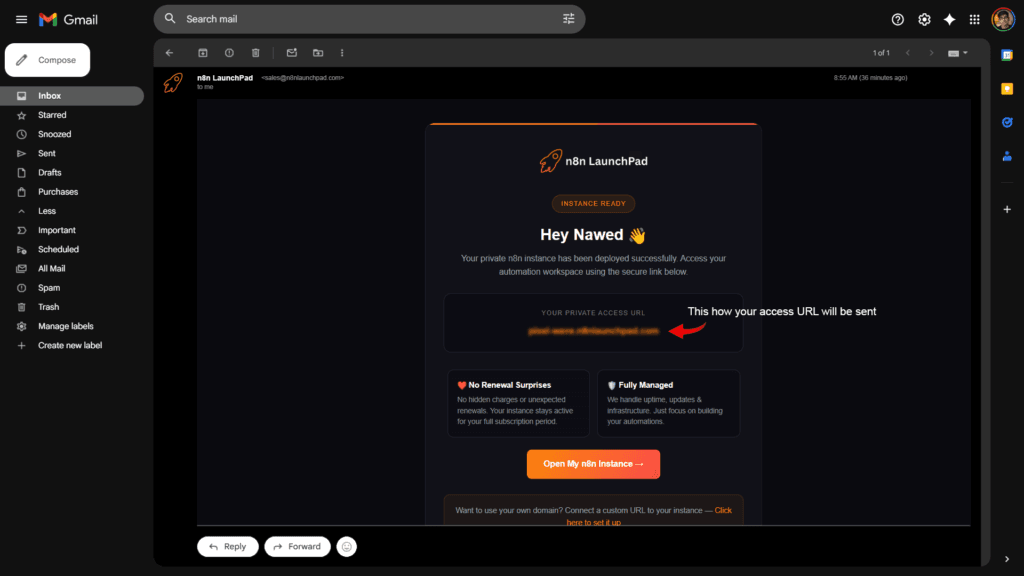
n8n LaunchPad gives you a fully deployed, pre-configured n8n instance delivered straight to your inbox. No VPS. No Docker. No terminal. Just a working n8n URL, ready to build on. It’s the fastest way to go from “I want to try n8n” to actually building your first AI agent — in under 5 minutes.
Frequently Asked Questions
Do I need an OpenAI API key to build AI agents in n8n?
Yes, you’ll need an API key from whichever LLM provider you choose — OpenAI, Anthropic, Google, or others. You add it once in n8n’s Credentials section. n8n itself doesn’t charge you for AI usage; that cost goes directly to the model provider.
Is n8n’s AI Agent node available in the free version?
Yes. The AI Agent node is available in self-hosted n8n and is included in all paid n8n cloud plans. If you’re using n8n LaunchPad, it comes pre-installed and ready to use.
What’s the difference between an AI Agent node and a regular LLM node in n8n?
A basic LLM node takes an input, sends it to the model, and returns the output. The AI Agent node is more powerful — it can use tools, maintain memory, and make multi-step decisions autonomously. Think of the LLM node as a prompt, and the AI Agent node as a thinking assistant with access to apps.
Can I use local models (like Ollama) instead of OpenAI?
Absolutely. n8n supports Ollama, Mistral, LLaMA, and any OpenAI-compatible API endpoint. This means you can run fully private AI agents where no data leaves your infrastructure — great for sensitive business workflows.
How is this different from Zapier’s AI features?
Zapier’s AI features are surface-level — mostly text generation inside linear Zaps. n8n’s AI Agent is a genuine agent framework: it can reason, choose between tools dynamically, loop back on itself, and handle complex multi-step logic. Plus, n8n is open-source and significantly cheaper to run.
How long does it take to build a working AI agent in n8n?
For a simple single-tool agent (like the email reply example above), expect 30–60 minutes on your first attempt. Once you understand the pattern, you’ll be shipping new agents in under 20 minutes. The biggest time investment is writing a clear, specific system prompt.
Ready to Build Your First AI Agent?
Stop watching tutorials. Get a working n8n instance delivered to your inbox and start building — today. No VPS, no Docker, no server headaches.